

Classplus web login is the process of signing in to your Classplus account through a browser. It works on a laptop or desktop without any app download. You can use it to open your classes, lessons, and tests.
You open your laptop, and your class is about to start. Then the Classplus web login page won’t let you in. Stay calm, because the fix is usually simple.
Students, teachers, and institute owners can all use Classplus web login. Most people sign in with a registered mobile number and a one-time password. This guide shows you the steps and the quick fixes for common errors.
What Is Classplus Web Login?
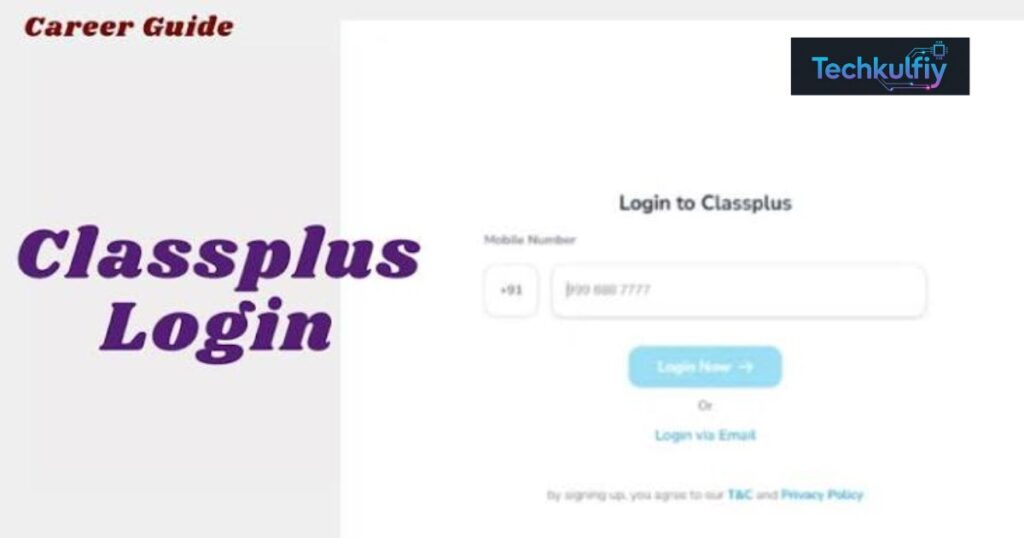
Classplus web login is the process of signing in to your Classplus account through a web browser instead of a mobile app. It opens the door to your online classes, recorded lectures, study materials, mock tests, and test series on a bigger screen. Many learners prefer it because videos look sharper on a laptop, and note-taking feels easier with a real keyboard.
Classplus works through branded learning spaces, which means each coaching institute or teacher can have its own look and setup. As a result, your login screen may carry your institute’s name and logo. The core idea stays the same, though. You prove who you are with OTP verification, and the online learning platform shows the courses linked to your account.
Web Login vs App Login
Both methods lead to the same content. The difference lies in comfort and convenience. The table below shows how they compare.
| Feature | Web Login | App Login |
|---|---|---|
| Device | Laptop or desktop browser | Smartphone or tablet |
| Screen size | Large | Small to medium |
| Best for | Long study sessions | Learning on the go |
| Installation | None needed | App download required |
| Notifications | Limited | Stronger push notifications |
Who Can Use Classplus Web Login?

Students, teachers, and institute owners can all sign in, but each group sees a different dashboard. A student login shows enrolled courses and test results. A teacher login shows batches, content uploads, and attendance tools. An admin login for institute owners shows the bigger business picture, including enrollments and payments.
Access also depends on your institute’s setup. Some branded platforms offer a full web experience. Others lean more on the mobile app. If you can’t find a web option, ask your teacher whether browser access is turned on for your batch. That one question can save you an hour of frustration.
How to Log In to Classplus on the Web: Step-by-Step
The steps below match the most common login process. Your institute’s screen may look a little different, so treat this as a map and not a strict script.
First, open a modern browser such as Google Chrome, Microsoft Edge, Mozilla Firefox, or Safari. Next, go to the official Classplus website or the web address your institute shared with you. Always type or paste the address yourself, because fake login pages and phishing sites do exist. Then click the login button and enter the registered mobile number linked to your account.
After that, the platform usually sends a one-time password to your phone. Type that OTP into the box and confirm. Some institutes also ask for an organization code or a store name, which your teacher can provide. Once the system completes account verification, your dashboard opens and your enrolled courses appear.
Quick Tips Before You Start
Keep your phone nearby because the OTP arrives there. Make sure you use the same mobile number your institute registered for you. A different number often leads to an empty dashboard, which confuses many first-time users.
Classplus Web Login for Students
Students get the simplest experience. You sign in, pick your course, and start learning. Live sessions appear at the scheduled time, and recorded lectures sit in neat folders for later review. You can also open PDF notes, attempt practice tests, and check your performance reports.
Here’s a small example. Imagine Daniel, a college freshman in Texas who joined an online test-prep batch. He logs in on his laptop every evening, watches the recorded lesson, and then takes a short quiz. Because the web version fills his screen, he spots small details in diagrams that he missed on his phone. Small wins like that add up over a semester.
Classplus Web Login for Teachers and Institutes
Teachers use the web version for heavier tasks. Uploading videos, building online tests, and managing batches feel easier on a large display. You can organize course content into chapters, schedule live classes, and review student performance.
Institute owners often care about the business side as well. They can track enrollments, manage staff access, and keep an eye on course sales. If you run a small coaching center, a laptop login gives you a clear overview without squinting at a tiny screen. Just remember that available features depend on your plan and configuration.
Classplus Web Login Not Working: Common Problems and Fixes
Even good platforms hiccup sometimes. Most login errors come from small, fixable causes. The table below lists the usual suspects and what to try.
| Problem | Likely Cause | Simple Fix |
|---|---|---|
| OTP not received | Network delay or wrong number | Wait a minute, check the number, then resend OTP |
| Wrong organization code | Typing mistake | Confirm the code with your teacher |
| Page won’t load | Browser cache or poor internet connection | Clear cache and cookies, then refresh |
| Empty dashboard | Different number used | Sign in with the registered number |
| Video won’t play | Outdated browser | Update your browser |
| Login keeps failing | Temporary server issue | Try again later or contact customer support |
If none of these work, try a different browser or an incognito window. Browser extensions and ad blockers sometimes block scripts that the login page needs. Disabling them for a moment can solve stubborn problems.
When to Contact Support
Reach out to your institute first because they manage your account. If the issue looks technical, then contact Classplus support through its official help channels. Include your registered number, a screenshot, and a short description of the error message. Clear details speed up replies.
Is Classplus Web Login Safe?
Safety matters, especially when your learning and payment details live inside the account. Classplus uses OTP-based authentication, which adds a layer of protection beyond a simple password. Still, you play a big part in account security.
Never share your OTP with anyone. Avoid logging in on public computers, and sign out when you finish. If you must use a shared device, clear the browser history afterward. Treat your login like your house key. You wouldn’t leave it lying around at a cafe.
Tips for a Smooth Classplus Web Experience
A little preparation makes every session smoother. Use a stable internet connection, because buffering ruins live classes quickly. Keep your browser updated, and close extra tabs that slow your computer down. Headphones help too, since they cut background noise and improve focus.
You should also bookmark your institute’s login page. That way you skip searching each time and avoid risky lookalike sites. Finally, test your setup ten minutes before a live class. Catching a problem early beats scrambling at the last second.
Frequently Asked Questions About Classplus Web Login
How do I log in to Classplus on my computer?
Open your browser, visit the official Classplus page or your institute’s web address, enter your registered mobile number, and confirm the OTP. Add an organization code if your institute asks for one.
Is Classplus web login free?
Signing in is generally free for students who already hold a course. Course fees and plans depend on your institute, so check with them directly. If you’re unsure about any charge, ask your teacher before you pay anything.
Why can’t I see my courses after logging in?
You may have used a different number than the one your institute registered. Try the original number or ask your teacher to confirm your enrollment. Once the enrollment is confirmed, your courses usually appear after you refresh the page.
Can I use Classplus on a laptop without the app?
Yes, if your institute has enabled web access. Otherwise you may need the mobile app for some features. Ask your teacher whether browser access is turned on for your batch.
Why isn’t my OTP arriving?
Weak network coverage is the most common reason. Wait a short while, confirm the number, and request a new code. If it still doesn’t arrive, try again later or switch to a stronger network.
Is Classplus login safe to use?
OTP-based sign-in adds protection, but you should never share your code and should always use the official page. Sign out after each session, especially on a shared computer.
Final Thoughts on Classplus Web Login
Classplus web login doesn’t have to feel complicated. You open a web browser, enter your registered mobile number, confirm the OTP, and step into your online classroom. Once you learn the pattern, the whole Classplus login process takes less than a minute. Students enjoy bigger screens and easier study sessions, while teachers gain better control over courses, batches, and student performance.
The real value of Classplus web login shows up in daily use. A laptop gives you sharper video, a proper keyboard for notes, and enough room to keep your lesson and your notebook open side by side. If you’re a student preparing for exams, that comfort adds up over weeks and months. If you’re a teacher, Classplus web LOGIN makes uploading lessons, building tests, and reviewing student progress much faster than a phone screen ever could. Think of it as trading a small desk for a full workspace.
Of course, things can still go wrong. An OTP may arrive late, a page may refuse to load, or your dashboard may look empty. When that happens, stay calm and work through the simple fixes first. Check your registered number, refresh your browser, and clear your cache if the page acts strangely. If the problem continues, ask your institute for help, because they manage your account and can confirm your enrollment. Most Classplus web login problems have a quick solution once you know where to look.
Safety deserves the same attention as speed. Always use the official Classplus page or the address your institute shares, and never give your OTP to anyone. Sign out on shared computers and keep your browser updated. A secure Classplus login protects your courses, your test results, and your payment details. A few careful habits keep your Classplus web account safe for the long run.
In the end, Classplus web login is simply the front door to your learning or teaching routine. Bookmark your login page, test your setup before live classes, and keep your phone close for the OTP. With these good habits, your Classplus login becomes a smooth and stress-free start to every lesson, and you can focus on what really matters, which is learning and teaching well
