

BETTER CANVAS is a tool that helps you customize the Canvas learning platform.
It can change parts of your Canvas dashboard and improve its look.
Students can use it for themes, cards, and other useful features.
Want a better Canvas experience without making things complicated?
BETTER CANVAS can make your dashboard feel cleaner and more personal.
Small changes can make everyday online learning easier and more enjoyable.
BETTER CANVAS works as a browser-based customization tool for Canvas.
It offers features like dark mode, themes, and course card customization.
You can explore its options and choose settings that fit your study needs.
What Is Better Canvas?
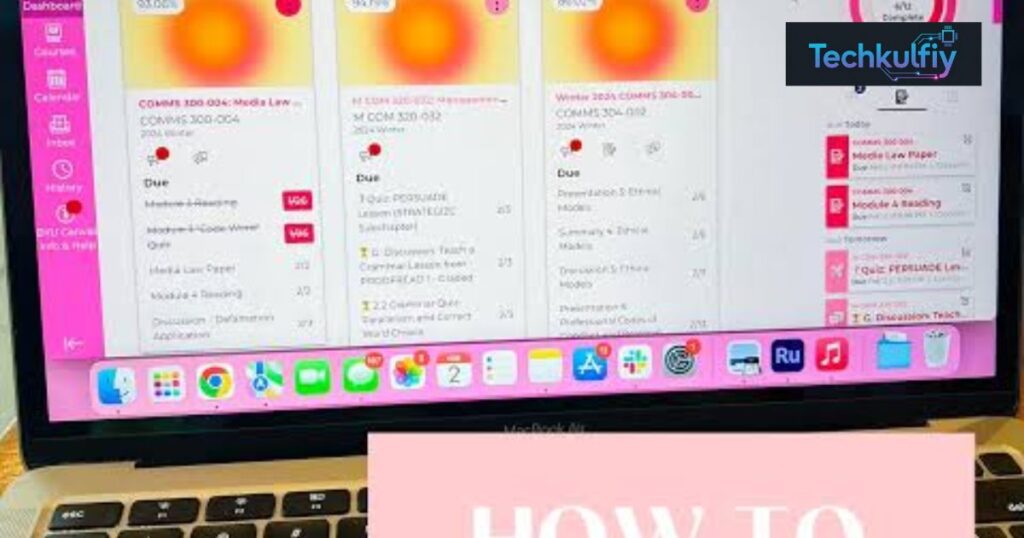
Better Canvas is a Canvas enhancement tool that adds customization options to the Canvas learning environment. Rather than replacing Canvas, Better Canvas works with the existing platform to give students more control over selected parts of the interface. Depending on the current version, Better Canvas can offer options for themes, dark mode, course cards, task management, and other interface improvements.
The main goal of Better Canvas is to create a more personalized learning experience. Canvas already provides the important academic functions you need, while Better Canvas can change the way those functions look or feel. For students who spend many hours on an online learning platform, a cleaner and more personal dashboard can make everyday navigation feel less repetitive.
BetterCanvas is particularly useful for students who want more than the default Canvas appearance. A customized dashboard can help you recognize courses faster and make your online classroom feel more like your own workspace. In simple terms, Canvas provides the classroom while Better Canvas gives you additional ways to personalize that classroom.
The tool also fits into the wider world of educational technology tools. Modern students often use several digital platforms for learning, communication, notes, and productivity. Better Canvas focuses specifically on improving the Canvas side of that experience without turning it into a completely different educational platform.
How Does Better Canvas Work With Canvas?
Better Canvas generally works through a Canvas browser extension in a supported desktop browser. Once you install the BetterCanvas extension, you can open Canvas normally and use the available customization settings. The extension can then apply supported changes to parts of the Canvas interface.
This means you don’t need a separate learning account just to use Better Canvas. Your institution still controls your Canvas courses, assignments, grades, announcements, and other academic information. Better Canvas adds a customization layer around the interface. If you later disable the extension, the Canvas experience can return to its usual appearance.
Think of it like decorating a study desk. The desk doesn’t change its purpose because you add a lamp, organize your books, or use different labels. In the same way, Better Canvas customization can change selected visual and productivity elements while Canvas remains the underlying Canvas learning platform.
The general process can be understood like this:
| Stage | What Happens |
|---|---|
| Open your browser | Your supported browser starts normally |
| Open Canvas | Your regular Canvas account loads |
| Better Canvas runs | The extension applies supported settings |
| Customize Canvas | You choose available visual or productivity options |
| Use your dashboard | Your personalized Canvas interface appears |
Because extensions can receive updates, the exact Better Canvas features may change. A feature that appears in one version might be renamed, redesigned, added, or removed later. Checking the current extension information is therefore important when you need details about a specific setting.
Better Canvas Features You Should Know
The appeal of Better Canvas comes from its combination of visual customization and useful interface tools. Some students want a beautiful dashboard while others mainly want better organization. Better Canvas can address both needs when the relevant features are available in the installed version.
The important thing is to customize Canvas with a purpose. A dashboard full of colors and images may look impressive at first, but readability still matters. The best Canvas student customization makes your courses easier to identify without making assignments harder to find.
Dark Mode and Custom Themes
Canvas dark mode changes the visual appearance of supported Canvas pages by using a darker interface. Many students like dark interfaces because they create a different viewing experience, particularly when studying in low-light surroundings. However, comfort depends on the person, screen brightness, contrast, and surrounding light.
Canvas themes provide another way to personalize the interface. Depending on the available Better Canvas version, you may find different colors, backgrounds, presets, or other visual controls. Students who enjoy creative layouts can experiment with Canvas themes and presets, while students who prefer a professional look can choose a simple design.
If you want to change Canvas background elements, don’t sacrifice readability for appearance. Light text on a confusing background can make a dashboard frustrating to use. A good theme should make your Canvas experience more enjoyable while keeping important information easy to read.
For example, you might choose a soft pastel theme for everyday studying or a darker design for evening sessions. You can also explore different Canvas theme ideas until you find something that feels natural rather than distracting.
Canvas Card Customization
Canvas cards help you access courses directly from the dashboard. When you’re taking several classes at once, however, identical course cards can make navigation slower. Canvas card customization gives you a way to make those courses more recognizable.
Depending on the available settings, you may be able to customize course cards, use different visual elements, or add suitable Canvas card images. A mathematics course could have a simple numbers-based image while a computer science course could use a technology-related design.
This type of Canvas design is more than decoration. Visual recognition can make it easier to spot the course you’re looking for. Imagine opening your dashboard before class and immediately finding the correct course instead of checking each card one by one. That’s where a small customization can become a useful part of your daily routine.
Better To-Do List
A busy semester can fill your dashboard with assignments, quizzes, readings, and deadlines. Better Canvas can provide additional ways to work with the Canvas to-do list when those features are supported by the current version.
A clear task view can help you focus on what needs attention first. For example, if you have a paper due tomorrow and a quiz due next week, you can mentally separate the urgent task from the upcoming one. This approach supports student productivity without changing the actual academic requirements inside Canvas.
However, always treat your official Canvas course information as the place to confirm deadlines. A customization tool should make information easier to view, not become your only source for important academic dates.
GPA Calculator and Productivity Tools
A Canvas GPA calculator can be useful when you want to estimate how different grades might affect your overall academic performance. Such a calculator should be treated as an estimate rather than an official university GPA record because institutions can use different grading systems, credit calculations, and policies.
Better Canvas may also include other Canvas productivity tools that help students work with the interface more efficiently. Features can vary by version, but the general idea is simple: spend less time fighting the interface and more time focusing on coursework.
For example, suppose you want to estimate the result of earning an A in one course and a B in another. A GPA calculator can help you understand the approximate outcome. Your university’s official academic system still determines your actual GPA.
Reminders and Other Customization Options
Reminders and additional customization options can make Better Canvas more useful beyond simple visual changes. Depending on the current feature set, students may find settings related to progress displays, assignments, navigation, search, or other dashboard elements.
Some versions may provide tools such as Canvas progress customization, Canvas sidebar customization, or a Canvas universal search bar. These features can be especially useful when you manage several courses and frequently move between different sections of Canvas.
The smartest approach is to enable features that solve an actual problem. If the standard sidebar already works well for you, there’s no reason to change everything. If you constantly lose track of course pages, then a more organized interface may be worth exploring.
How to Install Better Canvas Extension
Installing the Better Canvas extension normally involves finding the appropriate extension listing, checking its details, installing it in a supported browser, and then opening Canvas. The exact buttons and menus can differ between browsers, so always follow the current instructions shown by the official source or extension marketplace.
Before you install BetterCanvas, check the extension’s name, developer information, permissions, reviews, and update details. This simple habit is useful for any browser extension, not just Better Canvas.
| Installation Stage | What You Should Do |
|---|---|
| Find Better Canvas | Use a trusted official source or browser marketplace |
| Review details | Check developer and requested permissions |
| Install | Add the extension to your supported browser |
| Open Canvas | Visit your normal Canvas login page |
| Open Better Canvas | Access the extension controls |
| Test settings | Change one or two options first |
Download Better Canvas
To download Better Canvas, look for the current official source and supported browser marketplace rather than downloading an unknown file from a random website. This matters because third-party extension downloads can create unnecessary security concerns.
Search for the current BetterCanvas browser extension and carefully check its developer information before installing it. If several similarly named extensions appear, don’t assume they are identical. The name, developer, description, permissions, and official references can help you identify the correct product.
The safest habit is simple: verify before you install. A few seconds of checking can save you from installing an unrelated or outdated extension.
Install the Browser Extension
The BetterCanvas installation process depends on the browser you use. In a supported browser marketplace, you normally open the extension’s listing and choose the option to add it to the browser. The browser may then show a permissions screen.
Read those permissions instead of clicking through automatically. Browser extensions can require different levels of access depending on what they do. If something doesn’t match what you expect from a Canvas customization tool, investigate before proceeding.
After installation, the Better Canvas extension may appear among your browser extensions. If you don’t see it immediately, check the browser’s extension management area and make sure it hasn’t been disabled.
Open and Customize Canvas
Once Better Canvas is installed, open your normal Canvas website and look for the extension’s controls through your browser’s extension area. Depending on the current design, the extension may provide a menu where you can turn different settings on or off.
Start small. Enable Better Canvas dark mode or a simple theme first. Then check your course dashboard. If everything looks good, continue with card customization or other Canvas customization settings.
This approach makes troubleshooting easier too. If you enable ten settings at once and something looks strange, you’ll have no idea which setting caused it. One change at a time keeps the process simple.
How to Customize Canvas With Better Canvas
The best way to customize Canvas is to think about how you actually use your dashboard. Don’t choose a theme simply because it looks impressive in a screenshot. Choose settings that make your daily study routine easier.
Start with the overall appearance. Select a readable theme and adjust the interface to your preference. Next, personalize Canvas course cards so you can identify important classes quickly. After that, explore productivity settings that address specific problems such as navigation or task visibility.
Your Canvas dashboard should feel organized rather than crowded. For instance, you could use different course card images while keeping the rest of the interface relatively simple. This gives you visual variety without turning your learning environment into a digital carnival.
| Customization | Practical Purpose |
|---|---|
| Canvas dark mode | Changes the overall visual appearance |
| Canvas themes | Creates a personalized interface |
| Canvas cards | Makes courses easier to recognize |
| Canvas card images | Gives individual courses a visual identity |
| Canvas sidebar customization | Can reduce unwanted visual clutter |
| Canvas productivity features | Can support everyday course management |
| Canvas progress customization | Can provide additional visual feedback |
A useful case study is a student managing five university courses. The student gives each course a different card image, chooses one consistent theme, and keeps only useful navigation settings enabled. Instead of creating a complicated dashboard, the student builds a simple visual system. After a few days, finding each course becomes almost automatic.
Good customization isn’t about changing everything. It’s about changing what actually helps you.
That principle can guide your Canvas customization choices. If a feature looks attractive but makes navigation harder, turn it off. Your goal should be a better Canvas experience, not simply a more decorated one.
Is Better Canvas Available for Google Chrome and Firefox?
Better Canvas Chrome support and Better Canvas Firefox support depend on the extension’s current availability and version. The original Better Canvas concept has been associated with browser-based customization, including Google Chrome extension and Mozilla Firefox extension environments.
If you use Chrome, search the current extension marketplace and verify that the listing is the correct Better Canvas product. Firefox users should perform the same check through Mozilla’s extension ecosystem. Browser support can change, so an older article shouldn’t be treated as permanent proof of current compatibility.
The difference between desktop and mobile browsers is also important. A browser extension designed for desktop Chrome doesn’t automatically work on every mobile browser. That’s why checking the current platform information before installation can prevent confusion.
| Browser | What to Check |
|---|---|
| Google Chrome | Current Better Canvas extension availability |
| Mozilla Firefox | Current Better Canvas Firefox support |
| Safari | Official Safari compatibility |
| Mobile browser | Current mobile extension support |
If Better Canvas doesn’t appear in your browser’s extension marketplace, don’t download an unofficial copy just to force compatibility. Look for current information from the official product source or use Canvas without the extension until compatible support becomes available.
Can You Use Better Canvas on Safari, iPhone, or iPad?
Safari support requires separate consideration because a Chrome or Firefox extension isn’t automatically a Safari extension. If you’re searching for Better Canvas Safari, check whether the current Better Canvas project specifically provides Safari support rather than assuming the desktop extension will transfer directly.
The same principle applies to an iPhone or iPad. Mobile browser environments can handle extensions differently from desktop browsers. Therefore, Better Canvas on iPhone or Better Canvas on iPad shouldn’t be assumed to work simply because Better Canvas works on a desktop browser.
For Apple users, the practical question is whether the current version officially supports the device and browser you use. If it doesn’t, you can continue using Canvas normally or consider another tool that genuinely supports your platform. An alternative isn’t automatically a replacement because it may provide completely different features.
| Device or Browser | Key Question |
|---|---|
| Chrome desktop | Is the current Better Canvas extension supported? |
| Firefox desktop | Is Better Canvas currently available? |
| Safari Mac | Does the current release support Safari? |
| iPhone | Does the mobile environment support the extension? |
| iPad | Is the current Safari/mobile version supported? |
Is Better Canvas Safe to Use?
Safety is an important question whenever you install a student browser extension. Before using Better Canvas, review its current developer information, permissions, update history, privacy information, and user feedback. These checks give you a better picture of what you’re installing.
Pay particular attention to permissions. An extension needs certain access to perform its functions, but you should understand what that access means. Don’t assume that a popular extension is automatically risk-free. At the same time, don’t assume that every permission request means the extension is dangerous. The actual purpose and scope of the requested access matter.
You should also keep your browser updated and remove extensions you no longer use. If Better Canvas suddenly behaves differently after an update, check the current release information and settings before assuming something is wrong with your Canvas account.
Most importantly, download Better Canvas from a trusted source. Avoid modified extension files and unknown websites claiming to offer special or unlocked versions. Official distribution channels provide a clearer way to verify the software you’re installing.
Better Canvas vs Better Campus: What Is the Difference?
Better Canvas and BetterCampus can create confusion because people may encounter both names while searching for Canvas customization. The branding and naming of a product can change over time, so the safest way to determine whether two names refer to the same project is to compare the current official website, developer information, extension listing, and product description.
You may also see the term BetterCanvas without a space. Search engines and websites can use different versions of a product name even when they refer to the same general tool. However, similar names don’t guarantee that two extensions are connected.
| Name | What to Verify |
|---|---|
| Better Canvas | Current product and extension information |
| BetterCanvas | Alternate spelling or branding |
| BetterCampus | Whether it represents updated branding or a separate product |
| Better Canvas extension | Developer and browser support |
| Canvas customization tool | Current features and permissions |
If you find multiple products with similar names, slow down before installing one. Check the developer and official references first. This simple step can prevent you from confusing a genuine product with an unrelated extension.
Frequently Asked Questions About Better Canvas
What is Better Canvas?
Better Canvas is a Canvas customization and enhancement tool designed to change supported aspects of the Canvas interface. Depending on the current version, it can provide themes, dark mode, card customization, and productivity-related features.
What does Better Canvas do?
Better Canvas can help you improve Canvas experience by providing additional customization options. These may include themes, dashboard changes, course card customization, and productivity tools.
How do I install Better Canvas?
To install Better Canvas, find the current official extension listing for your supported browser. Review the developer and permissions before adding the extension. Then open Canvas and configure the available settings.
Is Better Canvas free?
The availability and pricing of Better Canvas can change. Check the current official product information for the latest details rather than relying on an old article or outdated extension description.
Does Better Canvas work with Google Chrome?
Better Canvas Chrome support depends on the current extension version and availability. Check the current Chrome extension listing before installing it.
Does Better Canvas work with Firefox?
Better Canvas Firefox support should be verified through the current Mozilla extension listing. Browser support can change as extensions receive updates.
Can Better Canvas work on Safari?
Safari support isn’t guaranteed simply because Better Canvas works on Chrome or Firefox. Check the current official information for specific Better Canvas Safari compatibility.
Can I use Better Canvas on iPhone or iPad?
Mobile support depends on the current extension and browser capabilities. Don’t assume that a desktop BetterCanvas extension will automatically work on an iPhone or iPad.
Is Better Canvas safe?
Before installing Better Canvas, check its developer, permissions, privacy information, reviews, and update history. Downloading from a trusted source and keeping the browser updated are also sensible precautions.
What is the difference between Better Canvas and BetterCampus?
The names can refer to different branding or versions depending on the current product status. Check the official product information and developer details to determine the current relationship between Better Canvas and BetterCampus.
Can I customize Canvas course cards with Better Canvas?
Where the feature is supported, Canvas card customization can let you personalize the appearance of course cards. This can make individual classes easier to recognize on your dashboard.
Does Better Canvas include dark mode?
A Better Canvas dark mode feature may be available depending on the current version. If supported, it can change the visual appearance of the Canvas interface.
Does Better Canvas have a GPA calculator?
Some versions or descriptions of Better Canvas include a Canvas GPA calculator among their productivity features. Any calculated result should be treated as an estimate rather than an official university GPA.
Can I remove Better Canvas if I don’t like it?
Yes. Browser extensions can generally be disabled or removed through the browser’s extension management settings. After disabling Better Canvas, your Canvas interface may return to its standard appearance.
Why isn’t Better Canvas working in Canvas?
Several things can cause problems, including browser compatibility, an outdated extension, conflicting extensions, changed Canvas pages, or a recent update. Check that Better Canvas is enabled, update the browser and extension when appropriate, and review current compatibility information.
Ultimately, Better Canvas is most useful when customization serves a real purpose. A cleaner theme can make the interface feel more comfortable. Distinct course cards can make navigation quicker. Productivity features can help you manage a crowded semester. The goal isn’t to make Canvas complicated. It’s to personalize learning platform features in a way that fits your own study routine.
