

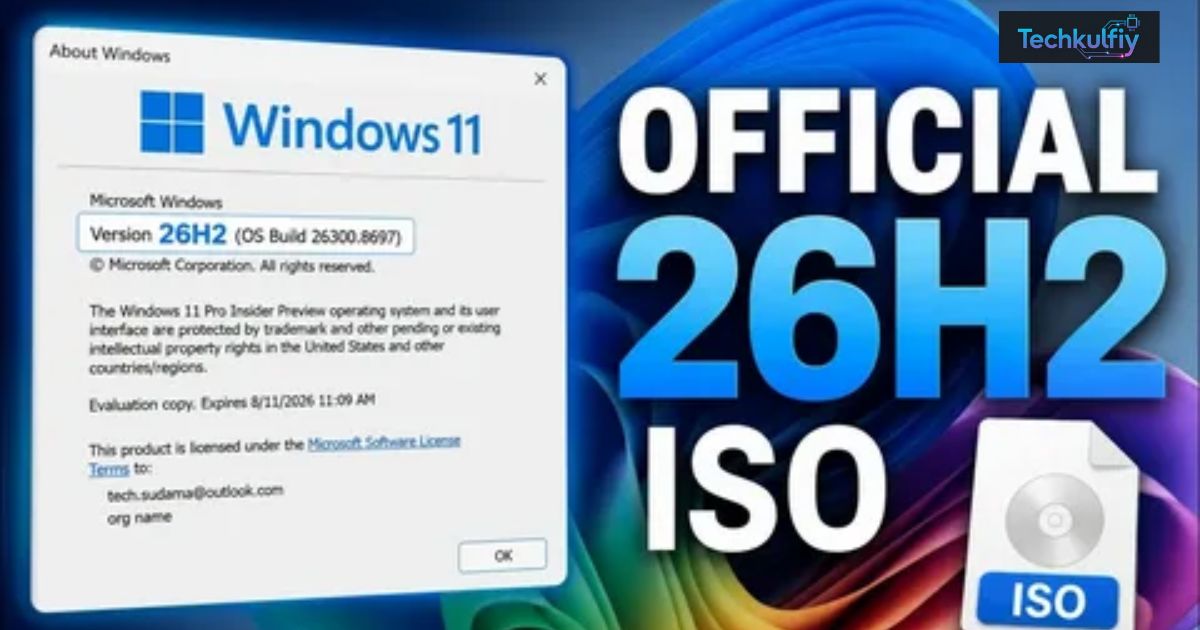
Windows 11 26H2 Update Released means Microsoft has launched its new yearly update for Windows 11. It arrived on September 29, 2026. It works on PCs that already run version 24H2 or 25H2.
Did your PC just get a new version of Windows? It may have, and you might not even notice. The install is tiny and quick. Here’s what you need to know before you click update.
The Windows 11 26H2 update comes as a small enablement package. It switches on features your PC already holds. Most people need only one restart, and support resets to 24 months for Home and Pro.
What Is Windows 11 26H2?
Picture your house after a year of fixing one room at a time. The kitchen got new cabinets in spring. The hallway got fresh paint in summer. Now someone screws a new number onto the front door. That’s roughly what Windows 11 version 26H2 does for your PC. Microsoft treats it as the Windows 11 annual feature update for 2026 and also calls it the Windows 11 2026 Update.
The release shares its code with versions 25H2 and 24H2. So you don’t get a brand-new operating system. You get a tidy bundle of performance improvements, security updates, and fixes from the past year. Devices that skipped a few of those pieces receive them when the update switches on. Your build number moves to 26300.9550.
| Item | Detail |
|---|---|
| Official name | Windows 11 2026 Update (version 26H2) |
| Build number | 26300.9550 |
| Delivery method | Enablement package (KB5121794) |
| Works on | Windows 11 24H2 and 25H2 |
| Support length | 24 months (Home and Pro), 36 months (Enterprise and Education) |
Windows 11 Version 26H2 Explained in Plain English
Here’s the simplest way to see it. Microsoft already installed most of the new stuff through monthly patches. The Windows 11 26H2 update just flips those features on and resets the version label. You keep your apps, files, and settings. Your user interface looks familiar too. If you liked your PC yesterday, you’ll like it today.
Windows 11 25H2 vs 26H2: What Really Changed
In a Windows 11 25H2 vs 26H2 matchup, the gap is small. Both run on the same servicing foundation. Some features that shipped switched off in 25H2 now come on by default in 26H2. Support time also restarts. That’s the headline difference, and honestly it’s a pleasant one.
Windows 11 26H2 Release Date and Availability
Mark Tuesday, September 29, 2026 on your calendar. Microsoft began rolling the update out to compatible Windows 11 PCs that day. The Windows 11 26H2 rollout works in stages though. Your PC may need to wait a few days. If it runs 24H2 or 25H2, you’re standing in the right lane.
The update also restarts your support clock. Windows 11 Home and Pro editions get 24 months of support after the install. Enterprise and Education editions get 36 months. Businesses can deploy through Windows Autopatch or the Microsoft 365 admin center. Americans on older PCs should note one more date, since Windows 10 end of support arrived on October 14, 2025.
Who Gets the Windows 11 26H2 Update First?
Most home PCs receive the update through Windows Update and automatic updates. Microsoft often tests builds first with the Windows Insider Program and the Release Preview Channel. Then it opens the door to everyone. Moving from Windows 11 24H2 to 26H2 works directly because both versions share a codebase. You don’t need to hop through 25H2 first.
Windows 11 26H2 Release Date Timeline
The timeline is short and simple. Microsoft shipped the update on September 29. Tech sites kept covering it into early October. Rollout waves continue, so some people still wait. Check the table below for a quick summary.
| Date | What happened |
|---|---|
| September 29, 2026 | General availability for compatible devices |
| September 30, 2026 | Major tech sites explain the enablement package |
| October 3, 2026 | News roundups confirm the release is live |
| Ongoing | Staged rollout reaches more PCs |
What Is an Enablement Package and Why Does It Matter?
Imagine a light switch in a room that’s already wired. You don’t rebuild the walls. You just flip the switch. An enablement package works the same way. Microsoft’s own support page describes it as a quick “master switch” for dormant features.
“Master switch” is how Microsoft explains the small package that turns on version 26H2.
The Windows 11 26H2 enablement package is called KB5121794. The Windows 11 26H2 size is tiny, at about 174 KB for 64-bit PCs. An ARM64 version also exists. Most people need just one restart. IT teams love the approach because a shared platform cuts their testing work. Microsoft calls the experience “predictable, low-disruption” in its IT pro guide.
| Factor | Traditional full upgrade | Enablement package (26H2) |
|---|---|---|
| Download size | Large | Tiny |
| Restarts | Often several | One in most cases |
| Risk level | Higher | Low |
| Feels like | Major overhaul | Monthly update |
How the Windows 11 26H2 Enablement Package Installs
Before the package installs, your PC needs a recent cumulative update. That update often carries a servicing stack update too. Think of the servicing stack as the engine that runs the install. Once the engine is healthy, the package flips the switch. Then Windows restarts and reports the new version. The Microsoft KB5121794 page lists the exact prerequisite.
Why the Windows 11 26H2 Enablement Package Matters for Everyday Users
A small feature update means less downtime and fewer surprises. You won’t lose an afternoon watching a progress bar. Still, smart users keep backup and recovery options ready before any update. A quick copy of your documents takes five minutes. It can save you five hours of regret.
New Features in Windows 11 26H2
Let’s be honest. The Windows 11 26H2 features list isn’t a fireworks show. Most items reached PCs earlier through monthly updates. Still, the Windows 11 26H2 new features bundle adds real value. File Explorer now handles more archive formats. Windows Search runs more reliably. Task Manager shows NPU usage. The taskbar also gains extra positions.
Security and recovery got attention too. Windows Hello Enhanced Sign-in Security now works with third-party fingerprint sensors. A new point-in-time restore option adds a safety net beside classic system restore. Windows settings backup, app-specific taskbar actions, and File Explorer improvements now switch on by default. Thurrott’s report covers the highlights.
| Feature | What it does |
|---|---|
| More archive formats | File Explorer opens more compressed file types |
| Reliable Windows Search | Finds files and apps with fewer misses |
| Extra taskbar positions | Lets you move the taskbar away from the bottom |
| NPU usage indicators | Shows AI chip activity in Task Manager |
| Enhanced Sign-in Security | Supports third-party fingerprint sensors |
| Point-in-time restore | Gives you a new recovery option |
| Settings backup | Saves your Windows settings |
Windows 11 26H2 Bug Fixes and Known Issues
The update bundles a year of Windows 11 26H2 bug fixes from monthly patches. As for Windows 11 26H2 known issues, no big problems have dominated coverage so far. Still, check Microsoft’s release health dashboard before you update an important PC. Watch for notes on driver compatibility and device compatibility. Older printers and niche hardware sometimes behave oddly after any update.
Extra Windows 11 26H2 Features Worth Watching
One report says Smart App Control can now switch on or off without a clean install. It also mentions a built-in Sysmon tool that stays off by default and an Agent in the Settings app. See NTCompatible’s coverage and verify details on your own PC. Improvements to the Start menu may also appear for devices that missed earlier patches. Whether Copilot features show up depends on your device and region.
Customizable Taskbar: Move It to Any Side of the Screen
Remember when Windows 11 locked the taskbar to the bottom? Plenty of people grumbled. Now the Windows 11 26H2 customizable taskbar fixes that gripe. The update adds more Windows 11 taskbar position choices. One FileHippo roundup says you can place it on the bottom, top, left, or right.
Who benefits most? Owners of ultrawide monitors often love a side taskbar because it saves vertical space. Laptop users with short screens agree. Windows 11 also turns on app-specific taskbar actions by default for commercial devices. So common actions sit one click away. That’s real taskbar customization without third-party tools.
How to Move Taskbar to Top or Side Windows 11
Here’s how to move taskbar to top or side Windows 11 style. Right-click an empty spot on the taskbar. Open Taskbar settings in the Settings app. Then look for position options under the taskbar behaviors. Menus can vary by build. If you don’t see the choice, install pending updates and restart your PC.
Taskbar Customization Tips for Windows 11 26H2
Try the left side if you own an ultrawide display. Try the top if your laptop screen feels cramped. Give any new layout a full week before you judge it. Your muscle memory needs time to catch up. A quick test run costs nothing and you can always switch back.
System Requirements for Windows 11 26H2
The Windows 11 26H2 system requirements start with one simple rule. Your PC must already run version 24H2 or 25H2. It also needs the prerequisite September cumulative update from Microsoft. Windows Update usually installs that for you. So, does my PC support Windows 11 26H2? If it runs those versions, the answer is usually yes.
The old Windows 11 hardware bar still applies to PCs that came from Windows 10. Those minimum hardware requirements include TPM 2.0 and Secure Boot support. You can verify everything on Microsoft’s Windows 11 specifications page. Every PC that already runs 24H2 or 25H2 has passed that test.
| Component | Requirement |
|---|---|
| Processor | 64-bit, 1 GHz or faster, 2 or more cores |
| RAM | 4 GB minimum |
| Storage | 64 GB minimum |
| Firmware | UEFI with Secure Boot capability |
| Security chip | TPM 2.0 |
Does My PC Support Windows 11 26H2? Quick Checks
Learning how to check Windows version takes ten seconds. Press the Windows key and R together. Type winver and hit Enter. A small window shows your version and build number. You can also open Settings, choose System, and click About. If it says 24H2 or 25H2, you’re ready.
Upgrade From Windows 10 and Windows 11 26H2 Eligibility
If you still run Windows 10, you can’t jump straight to 26H2. First upgrade from Windows 10 to Windows 11 through Microsoft’s normal path. Since Windows 10 end of support has passed, that move also protects you with fresh security updates. After that, the 26H2 package follows as a small step. Plan one evening for the whole journey.
How to Download and Install Windows 11 26H2
Start with the easy route. Open Settings and go to Windows Update. Click Check for updates. Look for “Windows 11, version 26H2” on the Windows 11 26H2 Windows Update screen. Click download and let the PC work. The Windows 11 26H2 install needs one restart. Save your open files first.
Prefer to take charge? Try the manual Windows 11 26H2 download. The enablement package KB5121794 comes in 64-bit and ARM64 versions through the Microsoft Update Catalog. Install the prerequisite update first. Pureinfotech’s guide walks through the manual route. Back up your important files before you begin. Good backup and recovery habits turn a scary moment into a shrug.
Windows 11 26H2 ISO, Media Creation Tool, and Installation Assistant
Many people search for a Windows 11 26H2 ISO. Most won’t need one. PCs on 24H2 or 25H2 upgrade with the small package. An ISO file matters mostly for clean installs. Compare fresh install vs in-place upgrade before you choose. A fresh install wipes your drive while an in-place upgrade keeps your files. Check Microsoft’s download page to see whether the Media Creation Tool and Installation Assistant already offer 26H2.
Case Study: Installing Windows 11 26H2 on a Family Laptop
Here’s an example scenario. Picture Sarah, a teacher in Ohio. Her laptop runs 25H2. On Saturday morning she copies her lesson plans to an external drive. Then she opens Windows Update and clicks Check for updates. The package downloads in moments. One restart later, winver shows version 26H2. Her files, apps, and wallpaper stay exactly where she left them.
Should You Update Now or Wait?
Let’s tackle the big question first. Should I install Windows 11 26H2? For most home users, yes. The package is tiny. The risk looks low. Your support clock resets. Think of it as a quick Windows 11 26H2 review: low drama, steady value, and a nicer taskbar. People with a recent backup have little to lose.
Then again, patience pays off for some people. Is Windows 11 26H2 worth it on day one? If your PC runs critical work, probably wait a week or two. Watch the Windows release health dashboard for reports. Businesses should test on a few machines first. That small habit prevents big headaches.
| User type | Recommendation |
|---|---|
| Home user with a backup | Update now |
| Gamer or creator | Update after checking known issues |
| Small business | Pilot on one or two PCs first |
| Enterprise IT | Use pilot rings before wide rollout |
Case Study: A Small Office Tests Windows 11 26H2 First
Here’s another example scenario. An accounting office in Texas runs 12 PCs. The owner picks two machines for a pilot. She installs the update on a Friday and checks printers, accounting software, and scanners. By Monday everything works. She then updates the other ten PCs in one afternoon. The cautious approach cost her almost nothing.
Windows 11 26H2 Rollback and Safety Net Plan
Nobody plans for failure, but smart people prepare. Create a system restore point and a file backup first. Then open Settings, choose Windows Update, and review Update history. That page may show an uninstall option for your Windows 11 26H2 rollback needs. Microsoft’s pages don’t spell out the rollback process for this package. So the backup matters more than the undo button.
Frequently Asked Questions (FAQs)
Is Windows 11 26H2 a free update?
Yes, for eligible PCs it appears to cost nothing. Microsoft delivers it through Windows Update and doesn’t mention a fee. You don’t need a new license if your PC already runs 24H2 or 25H2. Open Settings to see whether the offer appears on your device. That answers how to download Windows 11 26H2 for most people.
Will my files and apps be deleted after updating?
No, your files and apps stay in place. Microsoft delivers the update as an enablement package, so you don’t need a reinstall. Your photos, documents, and programs remain untouched. Still, make a quick backup anyway. That’s a smart habit before any feature update.
How long does the installation take?
Expect it to feel like a normal monthly update. The download is small and the PC restarts once. Your hardware speed and any waiting updates change the exact time. Many people finish within minutes. Keep your laptop plugged in to avoid surprises.
What if the update is not showing in Windows Update?
Don’t panic if you see Windows 11 26H2 not showing on your screen. Microsoft rolls out in stages, so your PC may simply wait its turn. First confirm that you run 24H2 or 25H2. Then install every pending cumulative update and restart. If you wonder how to fix Windows update stuck problems, restart the PC and run the Windows Update troubleshooter. After a few days, try the manual KB5121794 package. Contact Microsoft Support if nothing works.
Can I uninstall 26H2 after installing?
Microsoft doesn’t clearly describe a Windows 11 26H2 uninstall path for this package. Open Settings, choose Windows Update, and check Update history for an uninstall option. Results can vary by PC. That’s why a restore point and a backup matter so much. Prepare first and you won’t need to guess later.
Conclusion
The Windows 11 26H2 update won’t dazzle you with a flashy new look. It does something smarter. It gathers a year of improvements under one version number and installs in a flash. You get more taskbar customization, better File Explorer support, helpful recovery tools, and a fresh support clock. All of that comes with one restart.
So, should you update? Most home users can say yes after a quick backup. Careful users and small businesses can wait a short while and watch Microsoft’s release health dashboard. Either way, bookmark Microsoft’s official pages for rollout news. Details can change as the Windows 11 26H2 rollout continues. A calm, prepared update always beats a rushed one.
.

About the Author
The author at TechKulfiy writes informative articles about technology, software, digital platforms, and IT solutions. The goal is to make complex topics easier to understand by providing clear explanations, practical insights, and helpful information. Each article aims to help readers explore technology topics and make informed decisions.